The clocks go back this Sunday, 25 October 2026. But while your phone updates automatically, is your home lighting ready for the change?
There’s something quite comforting about gaining an extra hour in bed. But the arrival of Greenwich Mean Time (GMT) also brings a noticeable change to our daily routines: darker evenings.
For many UK households, that means leaving work, finishing the school run or returning home when daylight has already faded.
And if you use a timer to control your home lighting, there’s one important task you shouldn’t overlook.
Your Light Switch Timer may need adjusting to keep your lights switching on at the right time.
The good news? It’s a simple process that takes just a few moments.
Whether you’re already using a mydome Light Switch Timer or thinking about automating your home lighting this winter, here’s everything you need to know.

Does the mydome Light Switch Timer Change Automatically?
No. The mydome Light Switch Timer must be manually adjusted when the clocks change.
Unlike most smartphones or internet-connected devices, the mydome timer operates using its own internal clock. It doesn’t automatically switch between British Summer Time and Greenwich Mean Time.
If you don’t update the clock after the change, your lights may switch on and off at different times than expected.
What Happens If You Forget to Change the Time?
Let’s say your living room lights are programmed to turn on at 6pm.
When the clocks go back, the timer will still be running one hour ahead of the correct UK time unless it’s adjusted.
That means a programme set to activate at 6pm on the timer would actually operate at 5pm GMT.
Although your lights may still switch on, they won’t necessarily be following the schedule you intended.
Correcting the internal clock ensures your lighting programmes continue to operate at the right local time.
Fortunately, there’s no need to erase your saved settings or programme the device from scratch.
How to Change the Time on Your mydome Light Switch Timer
Updating your timer for the October clock change is straightforward.
Once the clocks have gone back on Sunday, follow these four simple steps.
Step 1: Check the Time on Your Timer
Look at the digital display and compare it with the correct UK time.
If it hasn’t been adjusted, the timer will be displaying a time one hour ahead.
For example, if the correct time is 5:30pm, your timer may still show 6:30pm.
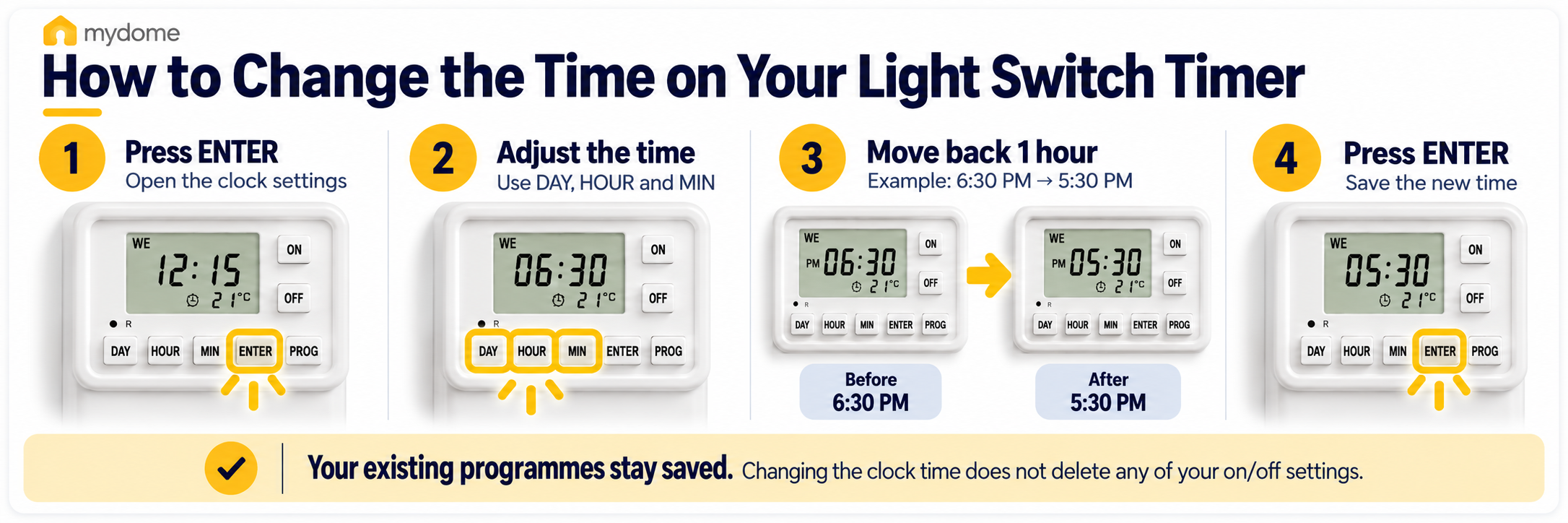
Step 2: Press the ENTER Button
Press ENTER on your mydome Light Switch Timer to access the clock settings.
Step 3: Adjust the Clock
Use the DAY, HOUR and MIN buttons to set the correct day and time.
For the October clock change, move the hour back by one hour.
For example:
Timer currently displays: 6:30pm
Correct UK time: 5:30pm
Make sure the day and minutes are also correct before continuing.
Step 4: Press ENTER to Confirm
Once the correct time is displayed, press ENTER again to save the change.
That’s it! Your Light Switch Timer’s clock is now updated.
Your existing ON and OFF programmes will remain saved, so you don’t need to reprogramme the entire device unless you want to change your lighting schedule.
For further assistance, you can also follow our mydome Light Switch Timer Quick Programming Guide.
Should You Change Your Lighting Schedule for Winter?
Correcting the clock is important, but it’s only half the job.
As the evenings become darker, it’s worth checking whether your existing lighting schedule still suits your daily routine.
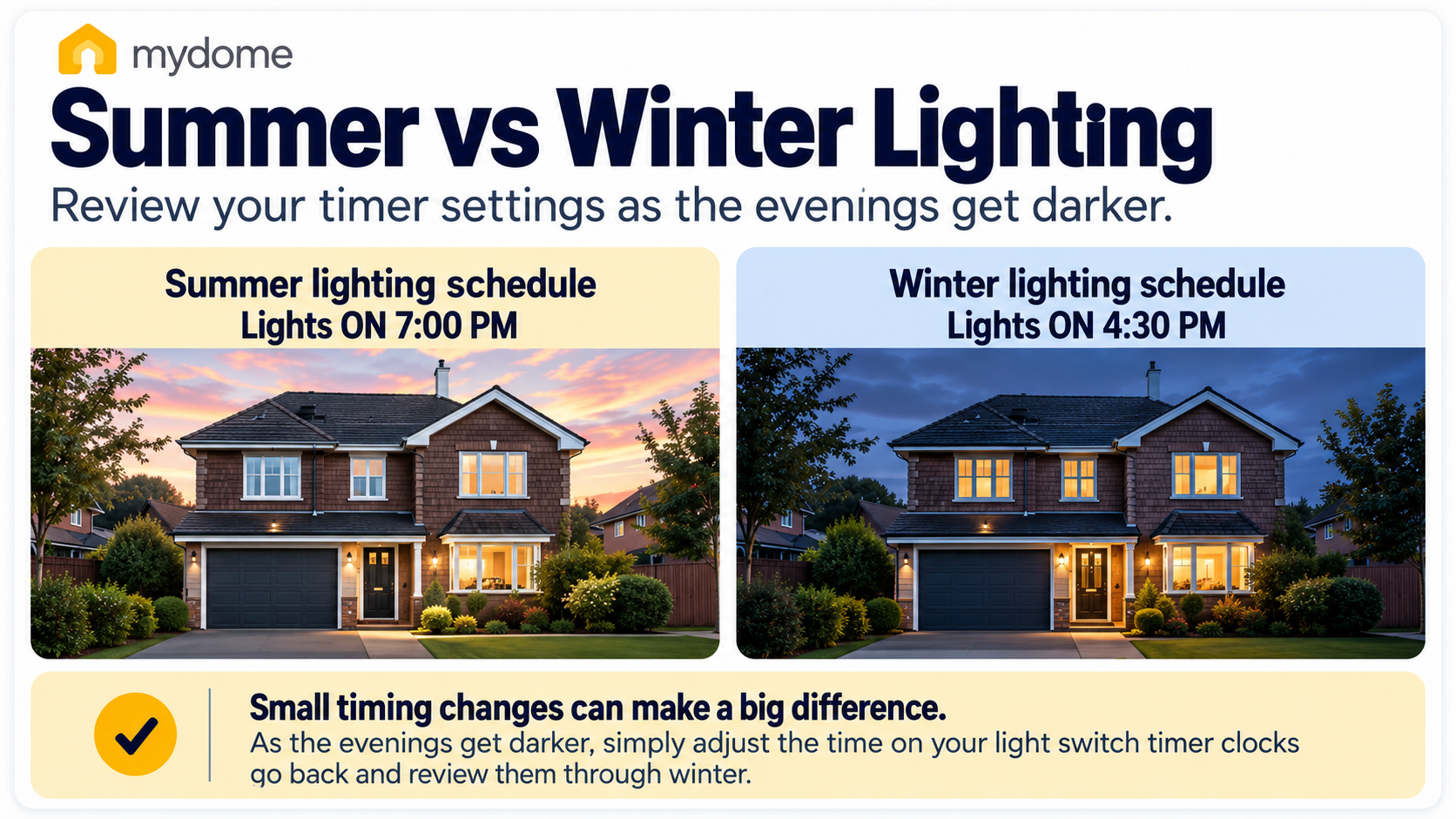
For example, during summer you might have your living room lights programmed to switch on at 7pm.
But by late October, it could already be dark long before then.
Rather than leaving your home unlit until your original programme begins, you might prefer your lights to come on earlier.
What Time Should Your Lights Come On in Winter?
There’s no single setting that works for every household.
The ideal time depends on where you live, when sunset occurs and when you normally return home.
As a starting point, you could consider the following example:
| Lighting programme | Example setting |
|---|---|
| Evening lights ON | 4:30pm |
| Evening lights OFF | 10:30pm |
| Morning lights ON | 6:30am |
| Morning lights OFF | 8:00am |
These are suggested times rather than fixed recommendations. Sunset varies across the UK, and it continues to get earlier as winter approaches.
The important thing is to choose settings that suit your household rather than leaving lights on unnecessarily.
How to Update Your Lighting Programmes
If you’d like to adjust when your lights switch on and off, follow these steps:
Press PROG to enter the programming settings.
Use the DAY, HOUR and MIN buttons to select the day and time you’d like your lights to switch ON.
Press ENTER to confirm your ON setting.
Select the day and time you’d like your lights to switch OFF.
Press ENTER again to confirm.
Press PROG to complete the process.
You can repeat these steps to create additional programmes and select different days or groups of days.
For example, you might prefer your lights to switch on earlier during weekdays when you’re usually at work, but follow a different routine at weekends.
It’s a simple way to make your home lighting work around your lifestyle.
For more detailed instructions, read our How to Programme a Light Switch Timer: Step-by-Step UK Guide.

Don’t Forget to Check AUTO Mode
Here’s one setting that can easily be overlooked.
The mydome Light Switch Timer allows you to temporarily disable your automatic lighting programmes without deleting them.
This can be particularly useful during summer when you may not need your lights switching on automatically every evening.
However, if you’ve previously disabled your schedule, it’s worth checking that it’s active again for winter.
How to Check Whether Your Timer Is in AUTO Mode
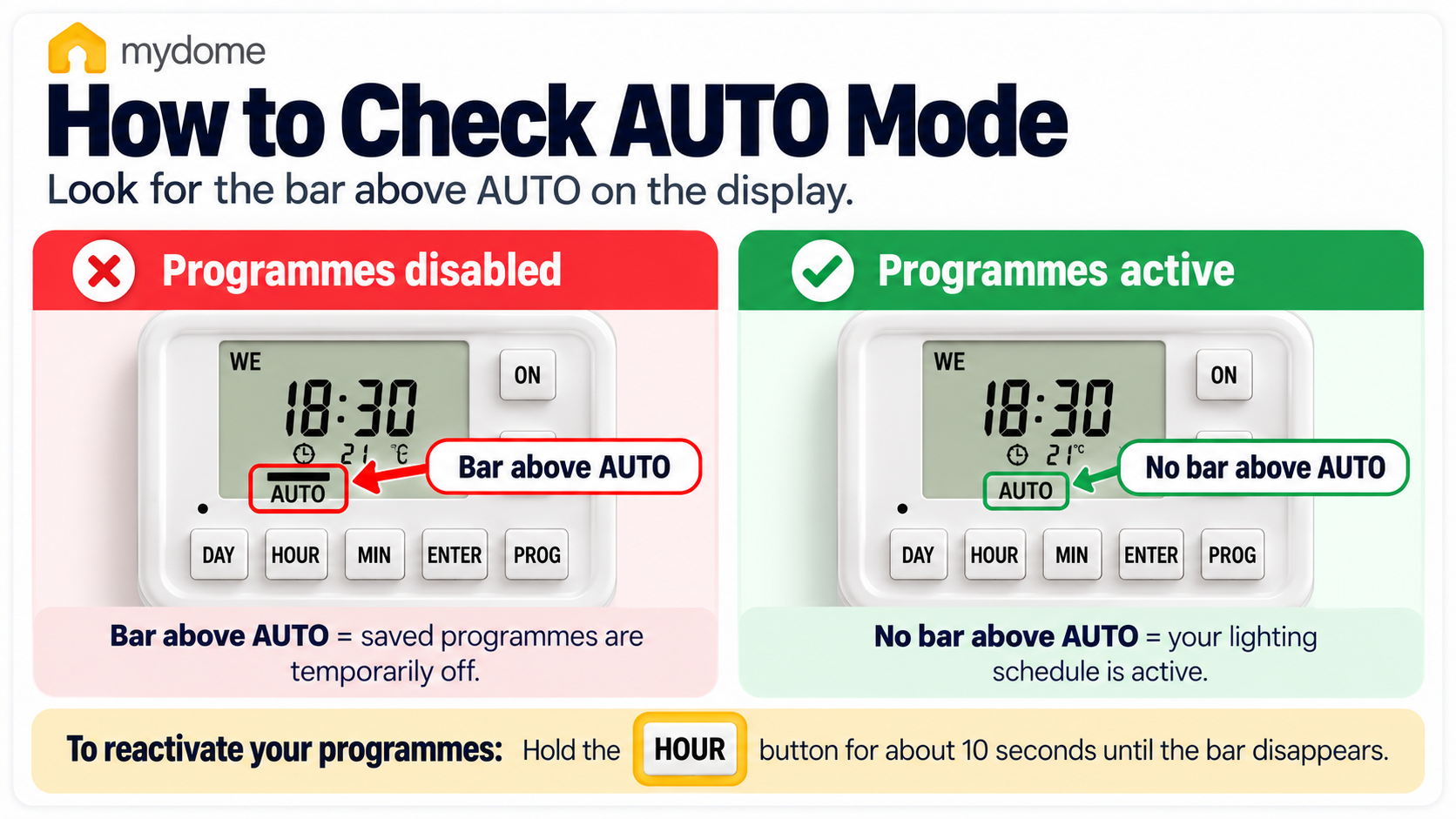
Look at the word AUTO on your timer’s digital display.
If there’s a bar or line above AUTO, your saved programmes have been temporarily disabled.
To reactivate them:
Locate the HOUR button.
Hold it down for approximately 10 seconds.
Check that the bar above AUTO has disappeared.
Your saved lighting programmes should now be active again.
This feature means you can switch between automatic and manual operation without losing the schedules you’ve already created.
It’s especially useful when your lighting needs change between summer and winter.
Why Automatic Lighting Is Useful During Darker Evenings
When we think about home security, doors, locks and alarms are often the first things that come to mind.
But there’s another simple consideration: what does your home look like from outside when nobody’s there?
During lighter evenings, natural daylight makes it less obvious whether lights are switched on inside a property.
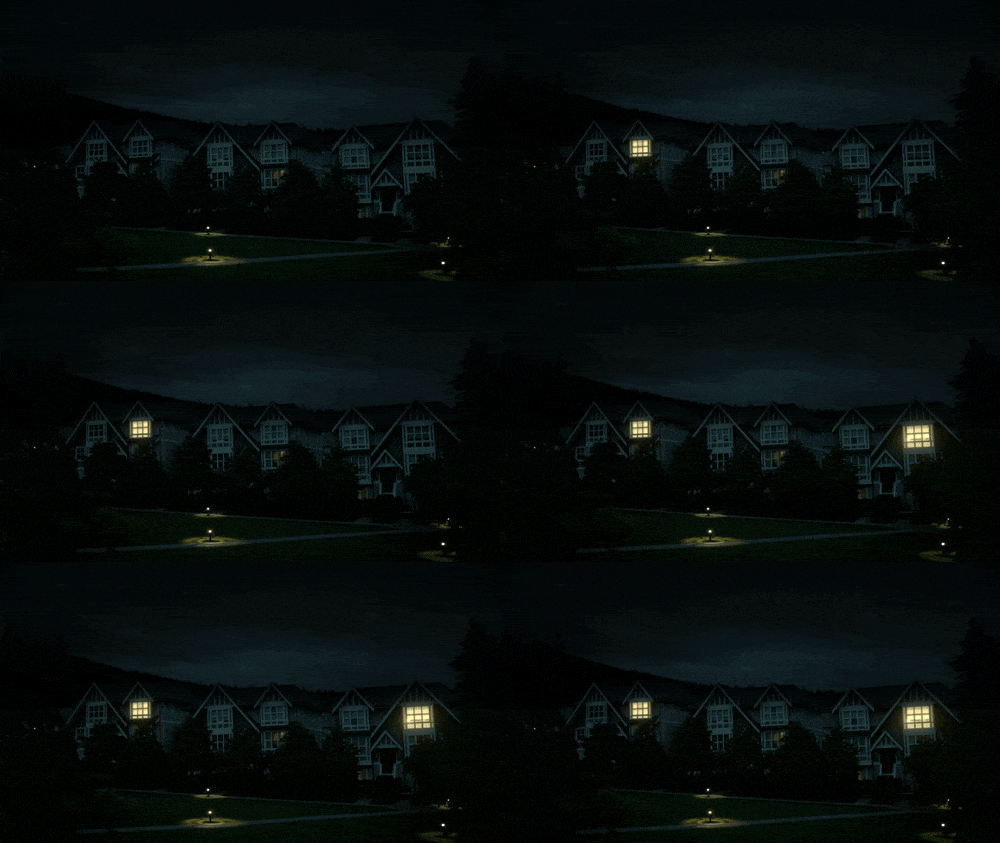
Once winter approaches, a home sitting completely dark during the early evening can become more noticeable.
Lighting alone cannot guarantee home security, but automatically switching lights on can help create the impression that someone is home.
It’s a straightforward precaution, particularly for households that are regularly empty after sunset.
Home Lighting That Works Around You
Imagine finishing work on a cold November evening.
It’s already dark, and you’re still on your way home.
Instead of arriving at an unlit property, your living room lights have switched on automatically at the time you selected.
Your home appears occupied before you arrive, and you return to a brighter, more welcoming space.
That’s the idea behind the mydome Light Switch Timer.
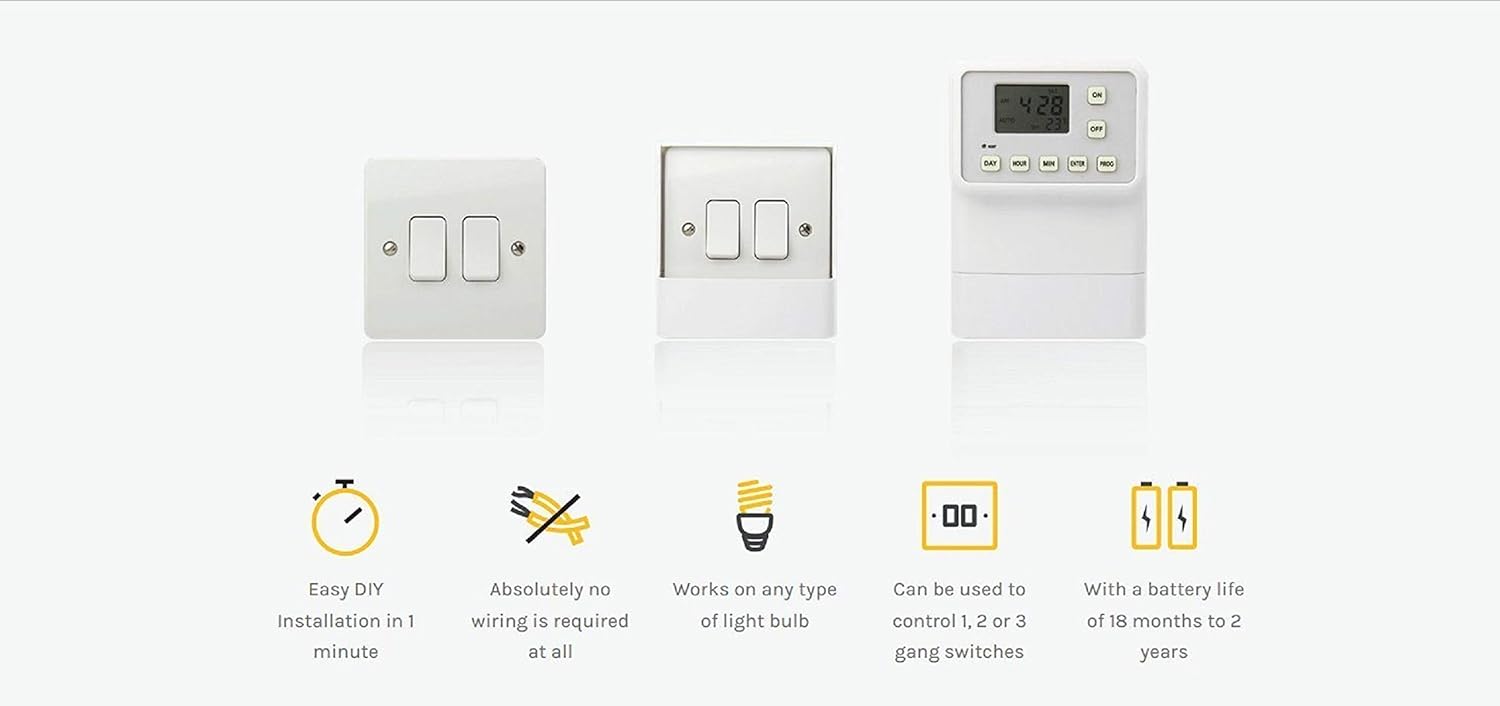
Unlike traditional plug-in timers, which typically control individual lamps, the mydome Light Switch Timer operates your existing wall light switch.
It allows you to automate your normal room lighting without replacing bulbs, rewiring switches or installing a complicated smart home system.
A Simple Way to Manage Your Home Lighting
The mydome Light Switch Timer offers several practical benefits:
No wiring or electrician required: Fits over compatible existing UK rocker light switches.
7-day programmable schedules: Choose different lighting times to suit your routine.
No Wi-Fi or app needed: Simple, battery-powered operation without relying on an internet connection.
Manual ON/OFF control: Continue using your lights whenever you need them.
Compatible with common household bulbs: Works with LED, CFL and energy-saving bulbs by operating the wall switch.
Secured by Design certified: Recognised through the police-backed security initiative.
The timer is designed for compatible standard 1, 2 and 3 gang UK rocker switches, so it’s worth checking your existing switch type before purchasing.
Whether you’re at work, heading out for the evening or away visiting family, it offers a practical way to keep your lighting on a consistent schedule.
Your Winter Light Switch Timer Checklist
Before settling into your autumn and winter routine, take a few moments to check that everything is working as expected.
Your six-point checklist:
1. Update the clock: Move the internal time back by one hour after the clock change on Sunday 25 October.
2. Review your ON and OFF times: Adjust your evening programmes to account for earlier sunsets.
3. Check AUTO mode: Make sure your saved lighting programmes are active.
4. Test your timer: Confirm that the device can operate your light switch using its manual controls.
5. Check the batteries: Look for the low battery indicator and replace batteries if necessary.
6. Review your settings throughout winter: As daylight hours continue changing, make small adjustments to keep your lighting schedule relevant.
These simple checks help ensure your timer continues doing exactly what you need it to do.
If your device isn’t operating as expected, visit our Light Switch Timer support and troubleshooting page for further guidance.
A Small Adjustment That Makes Winter Evenings Easier
The clocks going back may only involve changing the time by one hour, but it’s also a useful reminder to prepare your home for the darker months ahead.
By updating your Light Switch Timer and reviewing your programmed settings, you can make sure your home lighting continues working around your routine.
Whether it’s having your lights on before you return from work or helping your property look occupied while you’re out, small adjustments can make everyday life that little bit easier.
And when it comes to home security, consistency often matters more than complexity.
If you’re looking for more practical ways to prepare your property for the darker months, explore our Clocks Go Back Home Security Tips for UK Homes.
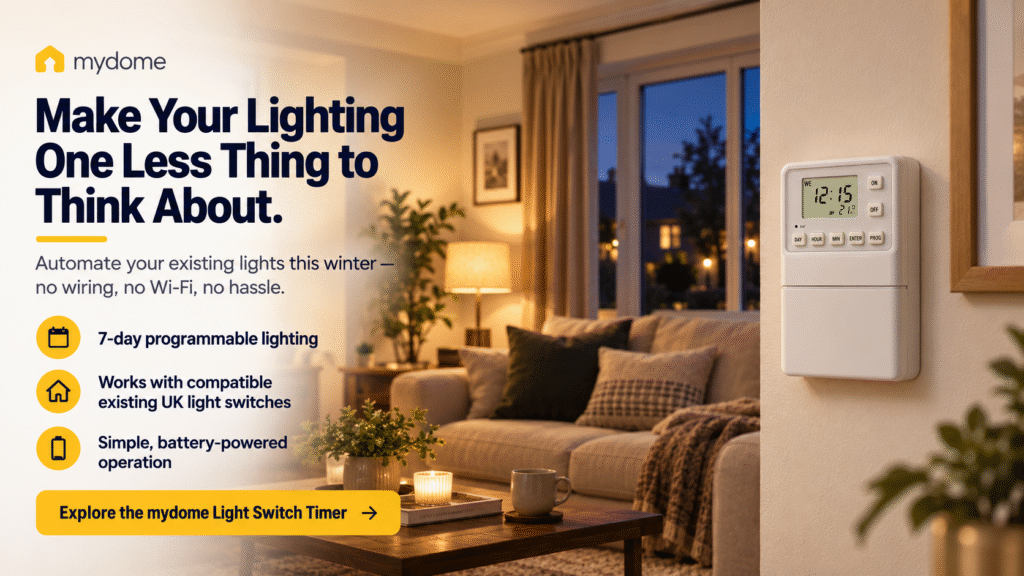
Make your lighting one less thing to think about this winter.
The mydome Light Switch Timer offers a simple, no-wiring way to automate your existing lights and help keep your home looking lived-in throughout the year.